Download the PDFWhich connection should I use?

Connect your camera

Canon

EOS R series and recent Rebels, including the EOS 250D / Rebel SL3

The short version

  • Over Wi-Fi, FilmDeck talks to Canon's Camera Control API (CCAPI). On most bodies you switch it on once with Canon's free activation tool. A few 2024–2025 bodies ship with it on.
  • Camera hotspot and home Wi-Fi both work. The camera shows its address on screen; you type it into FilmDeck.
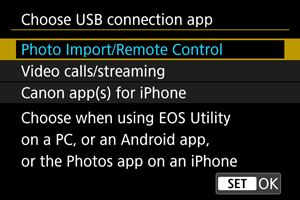
  • USB also works. On R bodies pick Photo Import/Remote Control as the USB app. Wi-Fi switches off while the cable is in.
  1. No manual screenshot is available for this screen.

    Switch on the Camera Control API (one time)

    ComputerCanon developer siteCCAPI Activation Tool

    Canon ships CCAPI switched off on most cameras. You turn it on once per camera and it stays on.

    Make a free account on Canon's developer community (developercommunity.usa.canon.com for the Americas, developers.canon-europe.com elsewhere). Download the CCAPI Activation Tool. Connect the camera to the computer by USB, turn it on, run the tool.

    Afterwards a new Camera Control API item appears in the camera's wireless menu, next to Connect to smartphone.

    Bodies reported to ship with CCAPI already on, no tool needed: EOS R1, R5 Mark II, R6 Mark III, R6 V, R50 V. That list comes from a third party, not Canon. The EOS 250D / SL3, R50, R8, R10, R7, R6 II, R5, R6, R3, RP, 90D, T8i and M-series bodies need the tool.

    Tip. Canon does not publish a picture of this screen. If your menu already shows Camera Control API, skip this step.
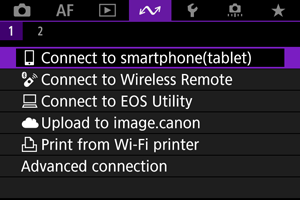
  2. EOS R50: the Communication tab.
    EOS R50: the Communication tab.
    Source: https://cam.start.canon/en/C011/manual/html/UG-08_Network_0030.html
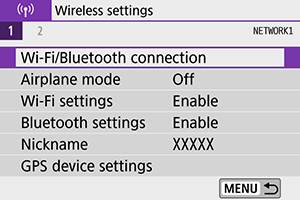
    EOS 850D / T8i: the Wireless tab. The 250D / SL3 has the same layout.
    EOS 850D / T8i: the Wireless tab. The 250D / SL3 has the same layout.
    Source: https://cam.start.canon/en/C002/manual/html/UG-08_Wi-Fi_0040.html

    Open the wireless menu

    MENUCommunication tab (R bodies)

    On EOS R bodies the wireless items live under the Communication tab (the wave icon). On the 250D / SL3 and other Rebels, look in the Wireless tab, then Wi-Fi/Bluetooth connection.

    Pick Camera Control API if you activated it. The next screens are the same ones Canon shows for Connect to smartphone, so the pictures here match.

  3. EOS R50: Select a network. Top option is the hotspot; the bottom line is a nearby router.
    EOS R50: Select a network. Top option is the hotspot; the bottom line is a nearby router.
    Source: https://cam.start.canon/en/C011/manual/html/UG-08_Network_0090.html
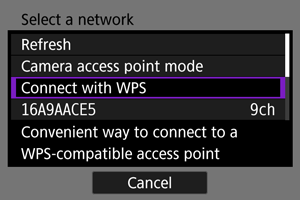
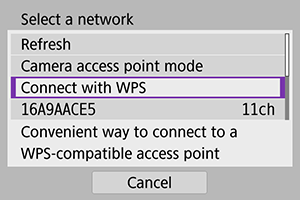
    EOS 850D / T8i: the same screen after Switch network.
    EOS 850D / T8i: the same screen after Switch network.
    Source: https://cam.start.canon/en/C002/manual/html/UG-08_Wi-Fi_0080.html

    Choose hotspot or home Wi-Fi

    Add a device to connect toSelect a network

    Choose Add a device to connect to. On an R body go through Advanced connection if the camera wants to pair over Bluetooth instead; FilmDeck does not use Bluetooth or the Camera Connect app.

    The Select a network screen is the fork in the road. Camera access point mode is the hotspot. A router name in the list, or Connect with WPS, joins your home Wi-Fi.

    On the 250D / SL3 the camera goes straight to the hotspot. Press Switch network on the waiting screen to see the list instead.

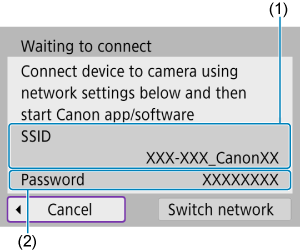
  4. EOS R50: Waiting to connect, with SSID and password. INFO switches network.
    EOS R50: Waiting to connect, with SSID and password. INFO switches network.
    Source: https://cam.start.canon/en/C011/manual/html/UG-08_Network_0090.html
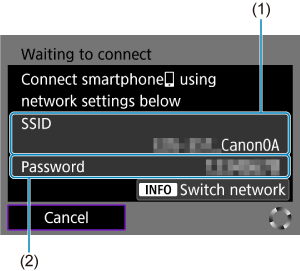
    EOS 850D / T8i: the same screen. (1) SSID, (2) password.
    EOS 850D / T8i: the same screen. (1) SSID, (2) password.
    Source: https://cam.start.canon/en/C002/manual/html/UG-08_Wi-Fi_0040.html

    Join the camera from your iPhone

    Camera access point modeEasy connectionWaiting to connect

    The camera shows an SSID (it ends in _Canon0A or similar) and a Password. On the iPhone open Settings, then Wi-Fi, and pick that name. Type the password.

    If you chose home Wi-Fi instead, make sure the iPhone is on the same router. Nothing else to do on the phone.

    Tip. If the iPhone refuses the network, set Wi-Fi settings › Security to WPA2 on the camera and try again.
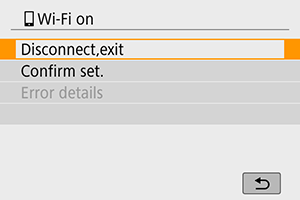
  5. EOS 850D / T8i: the Wi-Fi on screen. The Camera Control API shows a similar screen with the address.
    EOS 850D / T8i: the Wi-Fi on screen. The Camera Control API shows a similar screen with the address.
    Source: https://cam.start.canon/en/C002/manual/html/UG-08_Wi-Fi_0040.html

    Type the camera's address into FilmDeck

    Camera screenIP addressFilmDeck

    Once the phone is connected, the camera shows an address and a port. In hotspot mode it is usually http://192.168.1.8:8080, which is what FilmDeck suggests. On home Wi-Fi it is whatever your router handed out, for example http://192.168.0.23:8080.

    Enter it in FilmDeck and tap connect. The camera screen changes to a connected view with Disconnect,exit. From now on the camera reconnects to this phone with one tap on Camera Control API.

  6. Or use a USB cable

    Set-up tabChoose USB connection appPhoto Import/Remote Control

    Plug a USB-C to USB-C cable (or USB-C to micro-USB on the 250D / SL3) from the camera into the iPhone. Turn the camera on. Allow access when iOS asks.

    EOS R bodies have a Choose USB connection app item in the Set-up tab. Pick Photo Import/Remote Control. Not Canon app(s) for iPhone, which is for Canon's own software. The 250D / SL3 and other Rebels have no such menu; the cable is enough.

    Wi-Fi is unavailable while the cable is connected. Unplug to go back to the hotspot.

Good to know

Sources

  1. https://cam.start.canon/en/C011/manual/html/UG-08_Network_0020.html (EOS R50, Communication tab menus)
  2. https://cam.start.canon/en/C011/manual/html/UG-08_Network_0030.html (EOS R50, Connect to smartphone)
  3. https://cam.start.canon/en/C011/manual/html/UG-08_Network_0080.html and UG-08_Network_0090.html (EOS R50, direct Wi-Fi, camera access point mode)
  4. https://cam.start.canon/en/C011/manual/html/UG-09_Set-up_0230.html (EOS R50, Choose USB connection app)
  5. https://cam.start.canon/en/C002/manual/html/UG-08_Wi-Fi_0020.html, UG-08_Wi-Fi_0040.html, UG-08_Wi-Fi_0080.html (EOS 850D / T8i wireless menus; 250D / SL3 manual is PDF only and uses the same wording)
  6. https://sg.canon/en/support/0400468002 (Canon: EOS RP firmware 1.1.0 adds CCAPI, 'additional steps are required')
  7. https://asia.canon/en/campaign/developerresources/camera/cap (Canon Asia: CCAPI overview, Wi-Fi only except 1D X III / R3 wired LAN)
  8. https://downloads.canon.com/sdk/CameraControlAPI_OperationGuide_EN.pdf (Canon: CCAPI operation guide, access-point mode p.10–12, router p.13–15)
  9. https://www.middlethings.co/support/docs/compatibility/ (third party: which bodies ship with CCAPI enabled)
  10. https://help.picthrive.com/article/9w6m8j2sly-enable-ccapi (third party: activation walkthrough, address format)
‹ All guidesFujifilm ›